How to Create, View, File, and Post 1099 Forms
Background:
Patriot Software lets you create Forms 1099 and 1096 for your contractors and vendors at year-end, choose how to file (paper or e-file), and post digital 1099s to Contractor Portals — secure online portals where your contractors can view and download their own 1099 forms without requiring a mailed paper copy. E-filing 1099s is included at no additional cost for Full-Service Payroll customers. Accounting and Basic Payroll customers pay a per-filing fee displayed in the software before you proceed.
💡 Businesses with 10 or more information returns (which include W-2 and 1099s ) MUST file electronically per the IRS.
Important deadlines
Form 1099-NEC is due to the IRS by January 31 (both paper and electronic). If you file after the deadline, you are responsible for any IRS late penalties.
Form 1099-MISC is due to the IRS by February 28 (paper) or March 31 (electronic). But, give your vendors their copies by January 31.
1099 E-Filing Pricing
Note: 1099 e-filing is free of charge for Full Service Payroll customers, but you still must initiate the filing.
1099 e-filing charge for Basic Payroll, Basic Accounting, and Accounting Premium customers
| Number of 1099s | Pricing | What this means |
|---|---|---|
| 1 to 5 1099s | $20 total | Customers pay $20 for up to the first 5 1099s. |
| 6 to 35 1099s | $20 plus $2 per additional 1099 | After the first 5 1099s, customers pay $2 for each additional 1099 through 35 total 1099s. |
| 36 or more 1099s | Maximum charge of $80 applies | Starting at 36 1099s, there is no additional charge beyond the price for 35 1099s. |
Steps to Create, View, File, and Post 1099 Forms
To begin, go to Reports > 1099 Contractor Forms > Create and File 1099/1096 Forms. A video walkthrough is available on this page.
Video summary
The video on the Create and File 1099/1096 Forms page walks through the complete 1099 process: creating 1099s for contractors and vendors, downloading forms for review, choosing between e-filing through Patriot or filing yourself outside the software, and posting digital 1099s to Contractor Portals. The steps below follow the same sequence as the video.
Step 1: Create 1099 Form
Before creating 1099s, make sure your contractor and vendor information and payments are up to date. See Before You Create 1099s to make creating and filing your process seamless and stress-free.
- Go to Reports > 1099 Contractor Forms > Create and File 1099/1096 Forms.
- Verify all contractor information is correct before proceeding.
- Select the tax year from the dropdown menu at the top of the page.
- Click Create 1099s at the bottom of the page. Patriot will generate your 1099 forms.
- Optional: To create or recreate 1099 forms for only specific contractors, check the box next to each contractor’s name in the Contractor Activity List before clicking Create 1099s.
- If you have many 1099 forms to generate, you may receive an email notification when the 1099 creation process is complete (usually within moments).Verify all contractor information is correct before proceeding.
The date and time of the last creation will appear at the top of the page for reference.

Step 2: View 1099 Forms
Once 1099 forms are created, you can view them by downloading them. Two download options are available on the Create and File 1099/1096 Forms page.
Option 1: Use the “Download 1099 Forms” box
- Click Download 1099 forms in the box labeled Distribute 1099 Forms.
- Choose to download either:
- 1099 Forms for individual contractors.
- Form 1096, which summarizes your 1099 submissions.
Option 2: Use the Contractor 1099 Activity List
- In the Contractor Activity List, check the box next to a specific contractor’s name –or select all contractors using the checkbox at the top of the list.
- Click Download at the top of the table.
- A PDF of the selected contractor’s 1099 form will be downloaded to your computer for review.
For Printing 1099 Forms, check out our help article “How to Print 1099 Forms.
Step 3: Make Updates Before Filing
Review your 1099 forms carefully before filing. If you notice discrepancies, correct them before proceeding to Step 4.
Vendor Payment Totals Don’t Match Your 1099?
💡 If your vendor payment totals do not match your 1099 exactly, it could be because some payments were made by credit card. Payments made via credit card are not included in 1099 totals. For more details, read our help article: Recording a Vendor Payment Made by Credit Card.
How to Update Payment or Contractor Information
If you need to correct payment amounts or contractor/vendor records before filing, use the following links:
In Payroll:
In Accounting:
After making updates, return to Reports > 1099 Contractor Forms > Create and File 1099/1096 Forms and repeat Step 1 ( Create 1099 Forms ) process.to regenerate your 1099 forms with the corrected information. Then verify the updated 1099 forms before proceeding to Step 4.
Fix a Wrong 1099 Type
💡If you selected the wrong 1099 box type for a contractor or vendor, use the Update 1099 Type tool to correct the 1099 box type before filing. Read more on our help article, “How to Correct a 1099 Type.”
Step 4: Choose a Filing Method and Post to Contractor Portals
To select your filing method, click Get Started in the File and Post 1099s tile on the Create and File 1099/1096 Forms page.
E-filing cost reminder: E-filing is included at no extra cost for Full-Service Payroll customers. Accounting and Basic Payroll customers will see the applicable fee before proceeding.
Option 1: Let Patriot E-File for You
Patriot will submit your 1099s electronically to the IRS and to states that participate in the Combined Federal/State Filing (CF/SF) program — an IRS program that forwards federal 1099 filings to participating states so you don’t need to file separately in each state. For states that don’t participate in CF/SF, or that require a separate paper filing even though they participate, the software will flag those states and you will need to paper-file outside of Patriot.
Fees for Basic Payroll and Accounting only customers
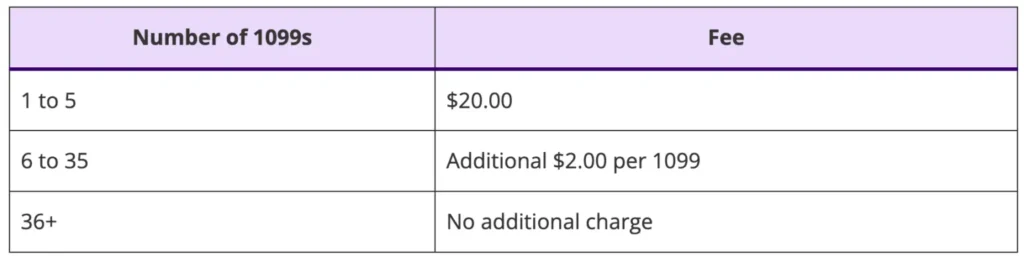
To have Patriot e-file 1099s on your behalf:
- Select Let us e-file for you.
- On the Combined Federal/State Filing screen, confirm contractor and state information. Use the dropdown to change the state if needed.
- Review any states flagged as “E-File Not Supported” (such as Oregon and Pennsylvania) — you will need to paper-file 1099 forms for those states outside the software.
- Review contractor 1099 details on the Review & E-File page.
- Check the certification box: “I agree that all information provided is accurate to the best of my knowledge.”
- Click Finish and Post 1099s. A confirmation message will appear, and digital 1099s will be posted to each contractor’s Contractor Portal automatically.
- After filing, return to the Create and File 1099 Forms page to track filing status:
- – Pending — filing is in progress
- – Completed — forms have been successfully filed
- Then print and distribute paper 1099 and 1096 forms as needed:
- To contractors who did not consent to digital delivery
- To states where the software flagged that a paper filing is required
Read our help articles for more information:
⚠️ Submit your 1099s for e-filing 2–3 business days before the actual due date to ensure timely filing. The e-filing window stays open through April 15, but filing after the IRS deadline makes you responsible for any late penalties.
Option 2: File Yourself Outside the Software
If you prefer to file 1099s directly with the IRS yourself (by paper or through a third-party service):
- Select File Yourself Outside the Software.
- Review all 1099 details for accuracy.
- Check the certification box to confirm that all information is accurate.
- Click Finalize and Post 1099s to finalize your 1099 forms and post digital copies to each contractor’s Contractor Portal.
- Download your 1099 and 1096 forms to
- File with the IRS
- File with states flagged by the software as requiring a paper filing
- Distribute paper forms to contractors who did not consent to digital delivery
Read our help article for more information, “How to Print 1099 and 1096 Forms.”
Will Patriot mail 1099s to Contractors and Vendors for me?
Patriot Software does not mail paper 1099 forms to contractors or vendors. It is your responsibility to ensure that each contractor receives their 1099 — either by printing and mailing a paper copy yourself, or by having the contractor access their digital 1099 through the Contractor Portal (if the contractor consented to digital delivery).
Updates Needed after Finalizing and Posting 1099s
If you need to make changes after finalizing and posting your 1099s, follow the instructions for your situation.
1. Adding Payments to an Existing Contractor After Filing 1099s
You can create a modified 1099 — an updated 1099 that includes only the additional payments added since the original filing. When a contractor receives a modified 1099, the contractor must use both the original 1099 and the modified 1099 for their records and total them when filing their taxes.
To add payments to an existing contractor’s 1099:
- Update the contractor’s payments in Patriot.
- Return to Reports > 1099 Contractor Forms > Create and File 1099/1096 Forms and repeat the create-and-file process using your original filing method.
- If you originally e-filed through Patriot, you can send an additional e-file to the IRS (and to the state, if Combined Federal/State Filing is supported for that state).
Note: The software resets each time you go through the create-and-file process, and e-filing fees are charged based on the number of filings submitted in that session.
2. Adding a New Contractor and Their Payments After Filing 1099s
To add a contractor who was not included in your original filing:
- Add the new contractor to Patriot.
- Add the new contractor’s payments.
- Return to Reports > 1099 Contractor Forms > Create and File 1099/1096 Forms and repeat the create-and-file process using your original filing method.
Note: The software resets each time, and e-filing fees are charged based on the number of filings submitted in that session.
3. Removing Payments from a Contractor
You cannot remove 1099 payments from a contractor after you have filed through Patriot. Instead, you must:
- Issue a corrected paper Form 1099 directly to the contractor.
- File the corrected Form 1099 with the IRS outside of Patriot using your original filing method (paper or electronic).
Patriot does not support e-filing corrected 1099s at this time. We apologize for the inconvenience. Read the IRS help article on e-filing through IRIS.
4. Updating a Contractor’s Tax ID (FEIN or SSN)
If a contractor’s tax identification number needs to be corrected after filing, you must:
- Issue a corrected paper Form 1099 directly to the contractor.
- File the corrected Form 1099 with the IRS outside of Patriot using your original filing method (paper or electronic).
Patriot does not currently support e-filing corrected 1099s. See the IRS help article on e-filing through IRIS for instructions on filing corrections electronically.
- You must issue a corrected Form 1099 to the contractor and file outside of Patriot to the IRS using the original method you filed with (electronic, or paper.)
Check out the IRS help article on e-filing through IRIS. Also see our articles “The Ins and Outs of E-Filing 1099s With the IRS,” and “How to Issue a Corrected 1099 (MISC and NEC),” for more information.
Your feedback will not receive a reply. If you have a specific issue, please reach out to our support team here.