Good news for anyone who’s been putting off setting up Auto Payroll: it’s easier now.
We’ve reworked the setup experience for Auto Payroll, our feature that automatically processes recurring payrolls for W-2 employees on a set schedule. The improvements are live for all Basic and Full Service Payroll customers as of July 15.
What’s Changed
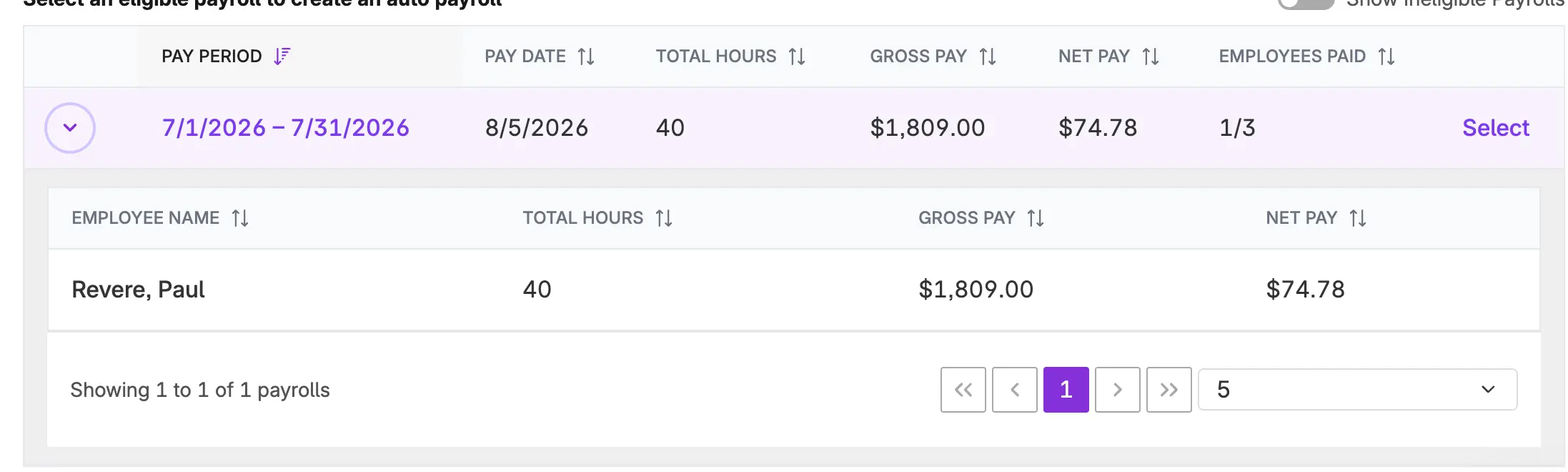
- A cleaner start – Setting up your first Auto Payroll used to mean working through a 3-step wizard. Now you’ll just click **Get Started** from Settings > Payroll Settings > Auto Payroll and go straight into choosing a template.
- A smarter template list – After you pick a pay schedule, you’ll see only the payrolls that are eligible to use as a template by default, so you’re not stuck guessing why a payroll doesn’t look right. Curious about the ones that didn’t make the cut? Toggle on Show Ineligible Payrolls to see both company-level and employee-level reasons a run couldn’t be selected.
- More visibility into your settings -Your Auto Payroll settings page now shows an inactive toggle along with the reason a template was disabled, so you can see what happened at a glance instead of digging for answers.
Nothing about how Auto Payroll actually runs has changed, and if you already have an Auto Payroll set up, there’s nothing you need to do. This update is all about making it faster and clearer to set one up for the first time (or add a new one).
Haven’t tried Auto Payroll yet? If you pay salaried employees or pay hourly employees the same amount each pay period, it’s worth a look; it’s one less thing to remember every pay period. Check out our help article How to Set Up and Manage Auto Payroll.