Troubleshooting Quickbooks Online Payroll Integration Errors
In this article:
Background
If you have not reconnected your Quickbooks Online account since March 24, 2026 at 1:58 PM EST please disconnect and reconnect so you are using the newest integration available.
- Go to Settings > Payroll Integration Settings > QuickBooks Online and reconnect. This refreshes your connection and resolves many common issues.
If you have reconnected since March 24, 2026, please see the following errors to troubleshoot and correct.
Confirmation After Posting Payroll
Once your payroll has been posted, the check register, (on step three of payroll), shows a small informational banner with a link to the Quickbook Integration Status Report. That’s where you can see whether your journal entry was sent successfully.

Integration Errors on Step 2 of Payroll
Before you post a payroll, Patriot checks the status of your QBO integration and will alert you if something needs your attention.
1. Your QBO connection is inactive
What you’ll see: A warning banner letting you know your QBO connection is inactive, with a prompt to reconnect before posting.

What this means: Your Patriot account has lost its connection to QuickBooks Online. This can happen if your QBO password changed, if you disconnected Patriot from within QBO, or if the connection timed out after a long period of inactivity.
How to fix it:
- Go to Settings > Payroll Integration Settings > QuickBooks Online
- Reconnect your account.
- Once reconnected, you’ll be able to continue with your payroll.
- If you continue to have problems be sure you have only one Quickbooks account tab open in your browser.
2. Account mappings are missing
What you’ll see: A warning banner noting a mapping issue, with a link to fix it before posting.

What this means: You’re connected to QBO, but one or more of your Patriot payroll accounts haven’t been matched to an account in your QBO chart of accounts. Patriot needs these mappings to build the journal entry.
How to fix it:
- Go to Settings > Payroll Integration Settings > QuickBooks Online > Account Mappings
- Make sure every required field has a QBO account selected.
- Pay special attention to any wage types or deductions you may have added after your initial setup.
- Save your mappings when you’re done.
QBO Integration Status Report Errors
The QBO Integration Status Report is your go-to place to check whether your payroll journal entries were sent to QuickBooks Online. It lists every payroll run and its current status. If something went wrong, you’ll see one of the following:
1. Warning: Accounts are out of sync
What you’ll see: An amber warning banner at the top of the Quickbooks Integration Status report saying Patriot is unable to post entries to QBO until you update your Payroll Integration Settings. The Send and Retry links will be hidden until this is resolved.
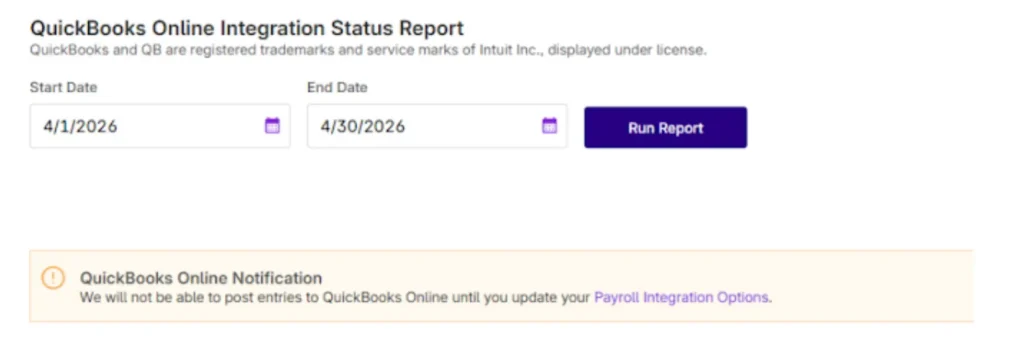
What this means: One or more of the QBO accounts mapped in Patriot no longer exist in QuickBooks Online. This typically happens when a chart-of-accounts entry is deleted or renamed directly in QBO after your mappings were saved.
How to fix it:
- Go to Settings > Payroll Integration Settings > QuickBooks Online > Account Mappings.
- Look for any mapped accounts that appear blank or broken.
- Remap them to active QBO accounts.
- Save your changes.
- Click the resend link on the Quickbooks Integration Status Report.
2. Error: Integration is disconnected
What you’ll see: An error banner at the top of the report saying the integration is disconnected, along with a prompt to reconnect. The affected payroll run will show as failed with a Retry option.
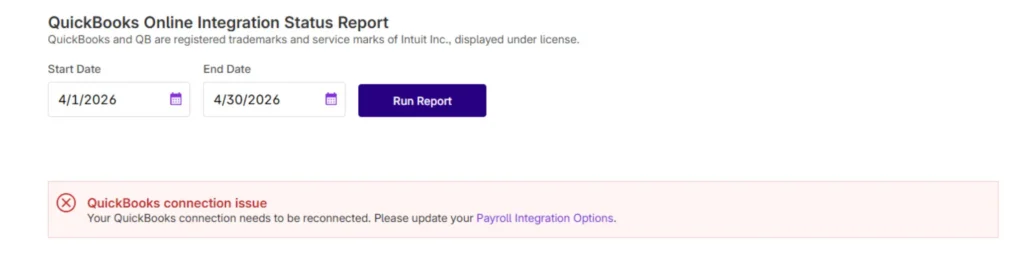
What this means: Your QBO connection went inactive after the payroll was posted, so the journal entry was never sent.
How to fix it:
- Go to Settings > Payroll Integration Settings > QuickBooks Online
- Reconnect your QBO account.
- Use the Retry link for the failed payroll run on the Quickbook Integration Status Report to send the journal entry once you’ve reconnected.
3. Error: Debits and credits don’t balance
What you’ll see: An error banner reading: Debits and credits in this entry don’t balance. Check your account mappings in your Payroll Integration Settings and retry. The affected run will show as failed with a Retry option.
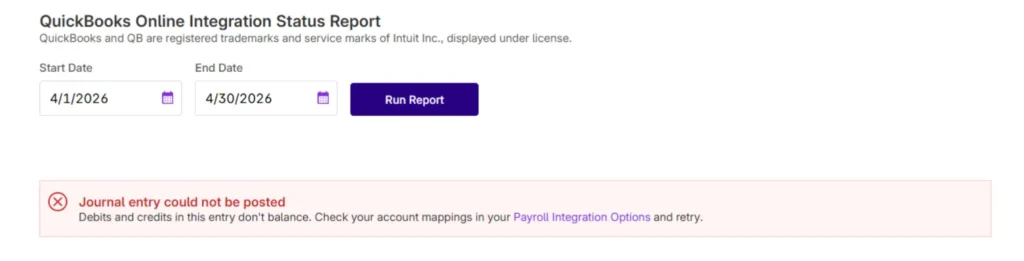
What this means: The journal entry was sent to QBO but was rejected because the debits and credits didn’t balance. This is usually caused by a misconfigured account type in your mappings.
How to fix it:
- Go to Settings > Payroll Integration Settings > QuickBooks Online > Account Mappings
- Review your setup carefully, paying attention to account types.
- Once you’ve made corrections, save your changes and
- Use the Retry link on the Quickbook Integration Status Report.
4. Error: Journal entry failed to send
What you’ll see: An error on the specific payroll run with a Retry link and a red banner on the Quickbook Integration Status Report.
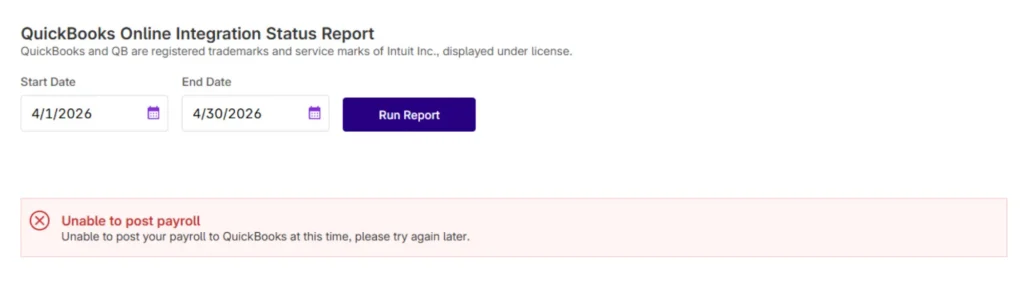
What this means: Your connection is active and your mappings are in order, but QBO returned an error when Patriot tried to send the journal entry. This is usually a temporary issue on QuickBooks Online’s end, such as a brief outage or service disruption.
How to fix it:
- Wait a few minutes and click the Retry link on the Quickbook Integration Status Report.
- If it continues to fail, please contact our support team.
For any failed payroll run, if you are using the standard QBO integration (not available for QBO beta) you have the option to download a PDF of the journal entry and enter it into QBO manually. This is a last resort for situations where retrying is not working or the integration issue cannot be resolved quickly and the you need to keep their QBO books up to date in the meantime.

Still having trouble? Contact our support team and we’ll be happy to help.
Your feedback will not receive a reply. If you have a specific issue, please reach out to our support team here.