Partners: Managing Your Clients in Patriot Software
In this article:
Background
If you are an Accountant Partner with special pricing, you will be adding your own clients to the software and managing and supporting these clients yourself.
How to Add and Manage Your Clients
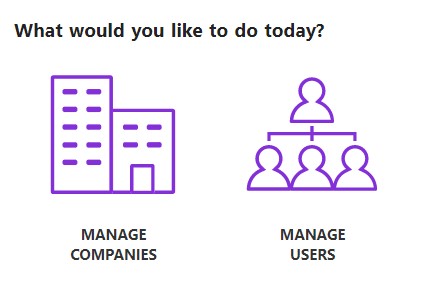
When you become an accountant Partner, your Dashboard will show the following options: “Manage Companies” and “Manage Users.” For more information on managing individual users, see Managing Multiple Users in Patriot Software.
The “Manage Companies” page shows a list of the companies you have added.
How to add a new client company
- In your accountant partner account, Go to Settings > Account Settings > User Settings > Manage Companies
- Click the Add Company button at the top right of the page.
- Enter your new client company information:
- The business name, tax filing name (if different), and address.
- Click Contact Information to move to the next step. We recommend using your email or a staff member email as the main contact.
- Check the box that reads “Give employees in my firm full access and permissions to this company” to allow any current users who are marked “This is an employee of my firm,” access and assigned full permissions to this company.
- You can change and modify this setting later if needed. If you do not see the box, please make sure your employees are marked as employees of your firm. For more information, see Managing Multiple Users in Patriot Software.
- Enter the contact information for this new company. This is meant for your own records. If this company has Full Service Payroll, we will use this name to fill in any tax forms for this company. Keep in mind the email address you enter here may receive emails directly from Patriot Software. If you don’t want Patriot to email your client directly, enter your own email address. Click “Add Products” to move to the next step.
- Select the products you want to add for this company. Your pricing will be calculated based on the number of employees at this client. Then
- Click “Add New Company.”
The new company will now appear in your “Manage Companies” page alphabetically.
To switch companies: You can view and administer one company at a time. There is a company switcher at the top of any page. Select the company from the dropdown, and the active company will automatically switch to that company. Any actions you take from the top and left menus (such as running a payroll) will just apply to that one company.
You can also switch companies from the “Manage Companies” page.
Click “Switch to Company” for the company you want to view. You’ll see that company will be marked as the active company in the list, and the company name appears in the top right corner, to make clear which company you are administering.
To remove Inactivate a company:
You can inactivate a company by switching to the company and removing all of their active products under Settings > Company Settings > Add or Cancel Software. You can then hide inactive companies from your list.
Removing or adding company from under your Partner umbrella
Removing a client: If you have a client needs to be completely removed from your list of companies, please contact our Partner Support team at partner@patriotsoftware.com and they will assist you with removing the company from under the umbrella of your account.
Adding a Client who is an existing Patriot customer:
- If your client already uses Patriot and needs to be added under your umbrella login, please contact our Partner Support team at partner@patriotsoftware.com and they will assist in moving the company to your client list. You will be responsible for billing and managing their Patriot account.
- If your client is already a Patriot customer and you do not want to manage billing for their account, ask the client to add you as a user in their software. See our help article for more details, but here is a quick overview of the process:
- Once they invite you, you’ll receive an email invitation to access their account. Follow the link in the invitation.
- When asked whether you already have a Patriot login, select “Yes, I’ll use my existing login information.”
- Then enter your current Patriot username, password, and multi-factor authentication information.
- After you’re connected, you’ll be able to access your client’s account using your existing Patriot login.
- The Company List will show you your user role, and whether your access is active or inactive.
Your feedback will not receive a reply. If you have a specific issue, please reach out to our support team here.