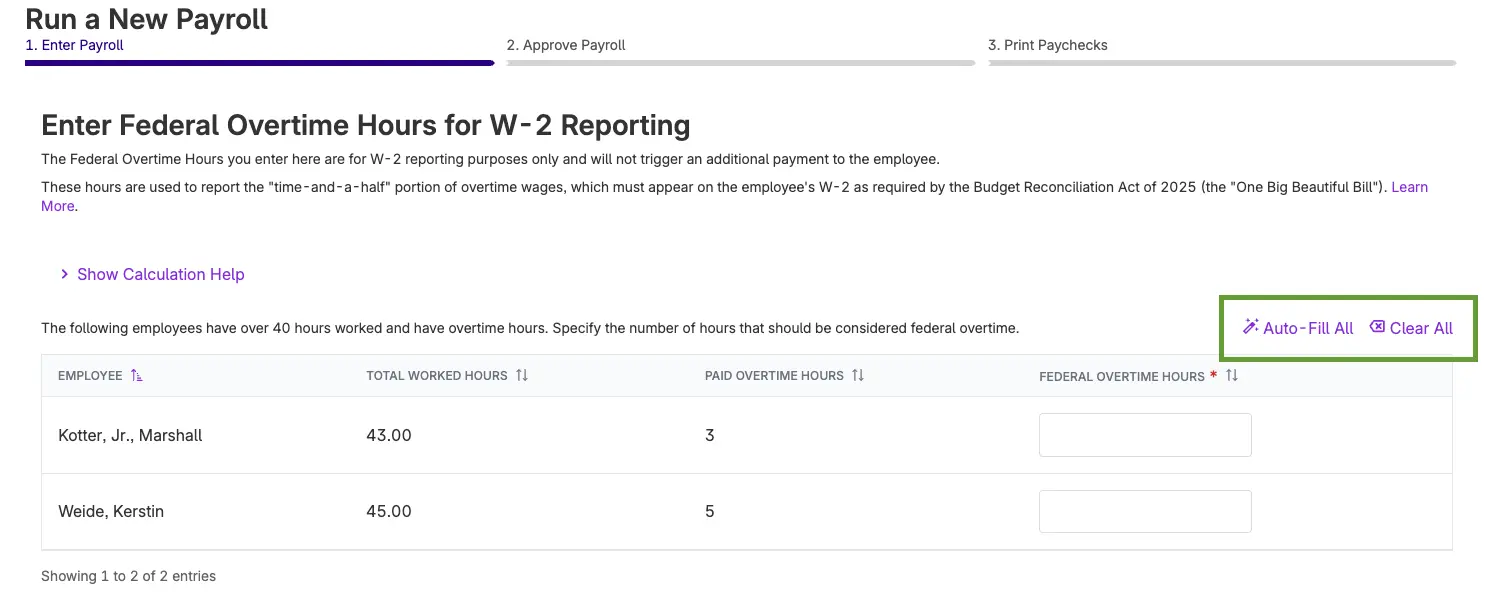
When you enter overtime hours in payroll, Patriot now automatically fills in the FLSA overtime hours in Step 1A — no manual entry required.
If your employees work overtime, you may have noticed the new Step 1A prompt that appeared in payroll earlier this year as part of our One Big Beautiful Bill compliance updates. The idea: identify which overtime hours qualify as FLSA overtime hours, so Patriot can report the right amounts on Form W-2.
The catch was that you had to enter those hours manually — even when every overtime hour was FLSA overtime. That’s extra work that shouldn’t fall on you, and we heard that.
What changed
Before: You entered overtime or double time hours, and then had to manually type the FLSA overtime hours into Step 1A.
Now: Patriot automatically fills Step 1A with the overtime and double time hours you’ve already entered when you click the autofill link. If the auto-filled number is right, just keep going. If some hours don’t qualify as FLSA overtime, you can adjust the number directly.
| This is a reporting field only — it has no effect on how overtime pay is calculated. Patriot already handles the math. Step 1A is strictly for W-2 reporting under the One Big Beautiful Bill Act. |
Why it matters
For most businesses, every overtime hour is an FLSA overtime hour. The old flow asked you to re-enter a number you’d already typed, every single payroll run. Now that step takes care of itself, and you only need to touch it when something genuinely differs.
Less clicking, fewer opportunities for a typo, and cleaner W-2 data — without changing anything about how your payroll is calculated or what employees get paid.
Check out our help article for more information, How to Indicate FLSA Overtime for W-2 Reporting in Payroll.