Set Up Stripe for Online Payments | Connect or Apply for Stripe
Available on: Patriot Accounting (Basic and Premium).
Patriot Accounting lets you accept online payments on customer invoices through Stripe — a third-party payment processor (a service that handles the technology and compliance required to accept electronic payments). Once connected, your customers can pay invoices using ACH Direct Debit, credit card, or Google Pay/Apple Pay directly from invoice emails.
Patriot does not charge fees to integrate with Stripe. Stripe charges a per-transaction fee based on payment type. Stripe automatically deducts Stripe’s fee from each payment before depositing the remainder to your bank account.
First payout delay: Per Stripe’s fraud prevention policies, the first payment collected through Stripe has a 7–14 business day waiting period before funds are deposited. Subsequent payouts follow Stripe’s standard timeline.
Questions About Stripe
- For common questions about Stripe in Patriot Accounting, read: “Stripe FAQs for Accounting Software Customers”
- For general Stripe support, visit Stripe’s Support Center
- For questions about new Stripe account approval, see: “New Account Approval Process”
- For the list of business types that cannot use Stripe, see: Stripe’s Restricted Businesses
- To disconnect Stripe from another platform before connecting to Patriot, see: “Disconnect Your Stripe Account from a Third-Party Platform”
Step 1: Apply for or Connect a Stripe Account
- Go to Settings > Accounting Settings > Transaction Settings.
- Scroll down to the Payment Processor section.
- Click Set Up Stripe. (Click Learn More first to review Stripe’s processing fee schedule if needed.)
- When prompted, select whether you want to create a new Stripe account or connect an existing one.
- If you are completing the Stripe application on behalf of a business, the form must be completed by the business owner or someone with significant management responsibility.
- Complete the Stripe onboarding steps to connect or apply:
- Connecting an existing Stripe account: If your Stripe account is currently connected to another platform, disconnect Stripe from that platform first before connecting Stripe to Patriot. See: “Disconnect Your Stripe Account from a Third-Party Platform.”
- Applying for a new Stripe account: Most applicants are approved during the application process. If Stripe needs additional information before approving your account, Stripe will notify you in the Stripe platform.
Step 2: Finalize Your Payment Processor Settings in Patriot
After your Stripe account is active, complete the payment processor settings in Patriot to configure how Stripe payments are recorded and when payment links are included in invoice emails.

- Go to Settings > Accounting Settings > Transaction Settings.
- Scroll down to the Payment Processor section.
- The Accept Stripe Payments toggle is enabled by default. You can disable this toggle later if you want to stop accepting Stripe payments.
- Under “Include the Stripe payment link in invoice emails”, check the boxes for the payment methods you want to offer customers by default:
- ACH Direct Debit — When checked, the ACH payment link will be pre-filled to “Yes” when you email each invoice. You can change this on a per-invoice basis when sending.
- Credit Card — When checked, the credit card payment link will be pre-filled to “Yes” when you email each invoice.
- Deposit Account for Stripe Payments — Select the asset account in your chart of accounts where Stripe payments should be recorded. When a customer pays an invoice through Stripe, Patriot automatically records the payment against that invoice and deposits the amount to this account.
- If you use the Manage Transactions feature (Patriot Accounting’s bank transaction import tool): If the bank account receiving Stripe deposits is connected to Manage Transactions, dismiss the imported Stripe deposit transaction in Manage Transactions. Importing the bank deposit as a transaction would create a duplicate — Patriot already recorded the payment when the customer paid.
- Record Transaction Fees Check this box if you want Stripe transaction fees to be recorded as an expense on the related customer invoice. If checked, also select the expense account to use for transaction fees.
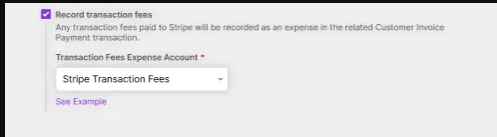
- Under Receive email notifications for successful Stripe payments, check the boxes for the payment types where you want to receive an email from Patriot each time a customer pays:
- ACH Direct Debit — Receive an email notification when a customer pays by ACH.
- Credit Card — Receive an email notification when a customer pays by credit card.
- Under “Receive email notifications for failed Stripe payments” (ACH only):
- ACH Direct Debit — Check this box to be notified if an ACH payment fails.
- Click Save Transaction Settings.
You are now set up to receive electronic payments when you email customer invoices.
For more details, read: “How to Accept Credit Card or ACH Payments on Customer Invoices”
Important Notes About Using Stripe
- First payout delay: The first Stripe payment collected has a 7–14 business day waiting period per Stripe’s policies. This applies only to the first payout for new Stripe accounts.
- Restricted businesses: Stripe cannot be used by businesses in certain industries. See Stripe’s Restricted Businesses list before applying.
- Record Transaction Fees feature: Coming soon! When released, it will allow Stripe transaction fees to be recorded as expenses in Patriot Accounting automatically, until then you will need to manually adjust for the Stripe transaction fees.
- Duplicate transaction warning: If your bank account receiving Stripe deposits is connected to the Manage Transactions import feature, you must dismiss imported Stripe deposits to avoid creating duplicate payment records.
- Existing Stripe accounts on other platforms: Your Stripe account can only be connected to one external platform at a time. Disconnect Stripe from its current platform before connecting Stripe to Patriot.
Your feedback will not receive a reply. If you have a specific issue, please reach out to our support team here.