How to Indicate FLSA Overtime for W-2 Reporting in Payroll
Background
Based on the passage of the One Big Beautiful Bill Act, employees who receive overtime compensation for hours worked beyond 40 in a workweek, may deduct the “half” portion of the overtime wages (that is required by FLSA) when filing their federal income tax return.
This deduction applies to tax years 2025 through 2028, although in 2025, the IRS is allowing reasonable estimations for reporting. See our blog article, No Tax On Overtime, for more information.
Beginning in 2026, you will need to indicate FLSA overtime hours in payroll for proper reporting on W-2s for the overtime tax deduction.
Mark Overtime as FLSA Overtime in Payroll
- Go to Payroll > Run a New Payroll.
- Select the pay schedule as you normally would. If an employee has FLSA overtime, you must use the software’s built-in Overtime Hours box. Custom overtime hour boxes won’t trigger the Step 1a reporting page.
- Click Next to see the reporting page for FLSA overtime.
- Enter Regular and Premium (Overtime/Doubletime) Hours:
- Enter the non-exempt employee’s total worked hours for the pay period.
- In the Overtime or Double Time boxes, enter the specific number of overtime or doubletime hours worked.
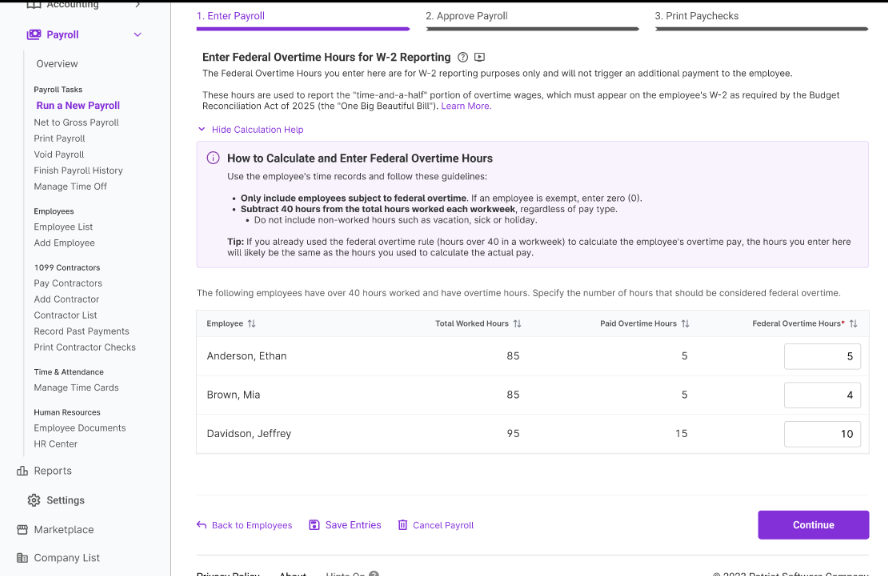
- Report FLSA Overtime: Entering hours in the Overtime or Double Time boxes will automatically prompt the FLSA Overtime Designation page (Step 1A)
- For each non-exempt employee, enter the total FLSA Overtime hours. (This is for reporting purposes only, not for calculating pay). Please refer to the DOL for any questions as to what qualifies as FLSA overtime.
- If you have Time & Attendance and sent time cards to payroll, the Federal Overtime Hours will be pre-filled based on time worked for the pay period.
- If you have not sent time cards to payroll, you can click “Auto-Fill All” to copy all Paid Overtime Hours into Federal Overtime Hours. You can also override the copied hours, if needed. You can also manually enter the Federal Overtime.
- Note: Patriot Payroll will handle the calculation and report the premium pay, (i.e. the half of “time and a half”), amount on the employee’s W-2; you only need to enter the FLSA hours.
- If an employee is exempt from FLSA overtime, enter 0 hours.
- Click Continue to view calculations and approve payroll.
- Complete Payroll: Continue and complete Step 2 and Step 3 to finish processing your payroll.
Your feedback will not receive a reply. If you have a specific issue, please reach out to our support team here.