How to View and Manage Documents in the Employee Portal
Coming Soon!
If you are an employee and have any questions about your paychecks, W-2s, or using the employee portal, please contact your employer. Patriot Support staff cannot answer your questions via chat, email, or phone. We can only speak with authorized company contacts.
Background
If your employer uses Patriot HR software, they can share documents or links to your employee portal where you can securely view them and you can also upload documents to your employer.
How to View Company Shared Documents
- Log into your employee portal at www.mypatriot.com or www.approvepayroll.com.
- Go to My Info > Documents on the side navigation.
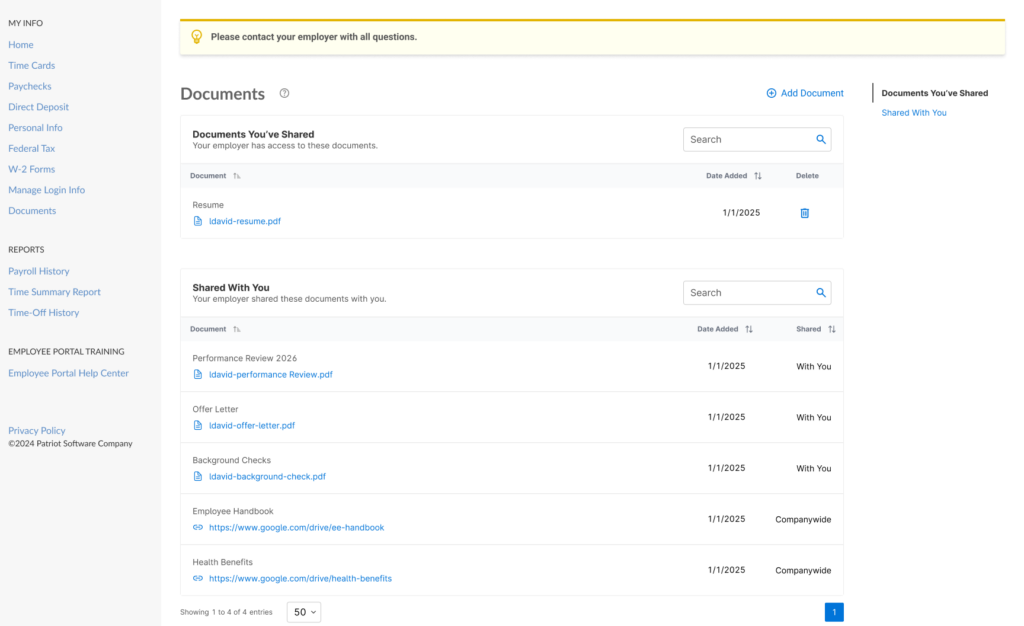
- The Shared With You section contains important files your employer has made available to you. These are organized into two types:
- With You: Private documents intended specifically for you, such as your Offer Letter or Performance Review.
- Companywide: General resources available to all employees, like the Employee Handbook or Health Benefits links.
- You can use the Search bar in either section to quickly find a specific file by name.
How to Share a Document with Your Employer
- Log into your employee portal at www.mypatriot.com or www.approvepayroll.com.
- Go to My Info > Documents on the side navigation.
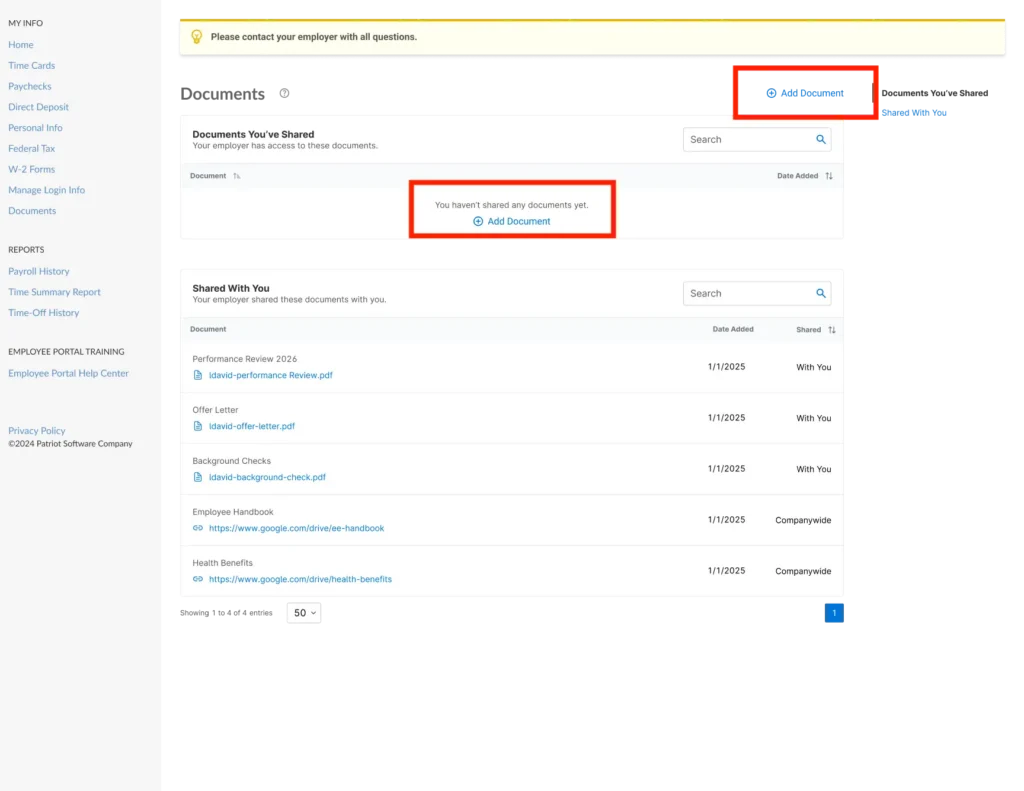
- Click +Add Document at the top right of the page and within the empty state of your shared list
- Display Name: Enter a name for the document so your employer can easily identify it (e.g., “Certification”).
- Description: Provide a brief description (200 characters or less).
- Upload: Drag and drop your file into the upload area or click “Choose a File”.
- Click Add Document to complete the upload.
- Note: If a file fails to upload, you will see a red “Document failed to upload” notification. Please check your file size and type before trying again.
- Your employer will be notified via email you have shared a document with them.
- You will receive an email if your employer deletes the shared document.
Upload Requirements:
- Max file size: 25 MB.
- Supported formats: .pdf, .doc, .docx, .jpg, .png, .gif, .rtf, .xls, .xlsx, .csv
9. Deleting: If you need to remove a document you previously shared, click the Trash Can icon in the “Delete” column.

Your feedback will not receive a reply. If you have a specific issue, please reach out to our support team here.