How to View Your Balance Sheet
Background
A balance sheet gives you a snapshot of a company’s financial position on a single date. It captures what the business owns, what it owes, and the value left over for the owner, all frozen at that moment. This report lays out assets, liabilities, and equity in one place, making it a key measure of your business’s financial health. Owners often use it to calculate financial ratios or compare different periods to spot trends. Lenders may also ask for a balance sheet when you apply for a loan. For more detail, check out our blog article on understanding your business balance sheet.
How to Use the Balance Sheet Report
- Go to Reports > Financial Reports > Balance Sheet
- The “Balance Sheet as of” date will default to today’s date. Change the date, if needed.
- Select either “Cash/Modified Cash” or “Accrual” for the Accounting Basis, depending on which accounts you want to view.
- Click “Run Report.”
Drill-down in the Balance Sheet Report
You can drill down directly inside the report to see details without leaving the page. To use Drill-down Reporting :
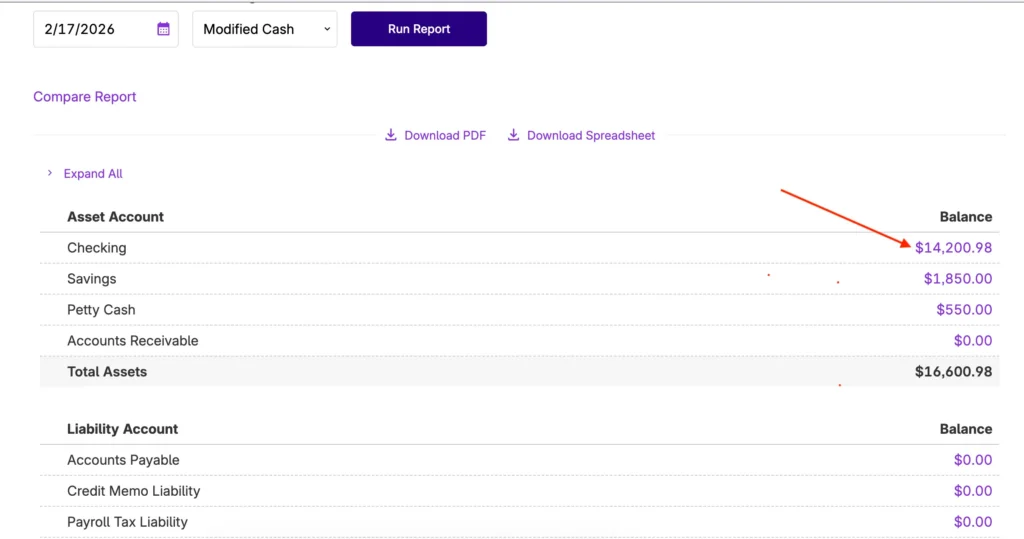
1. Click the total entry link under the Balance column for the transaction details.
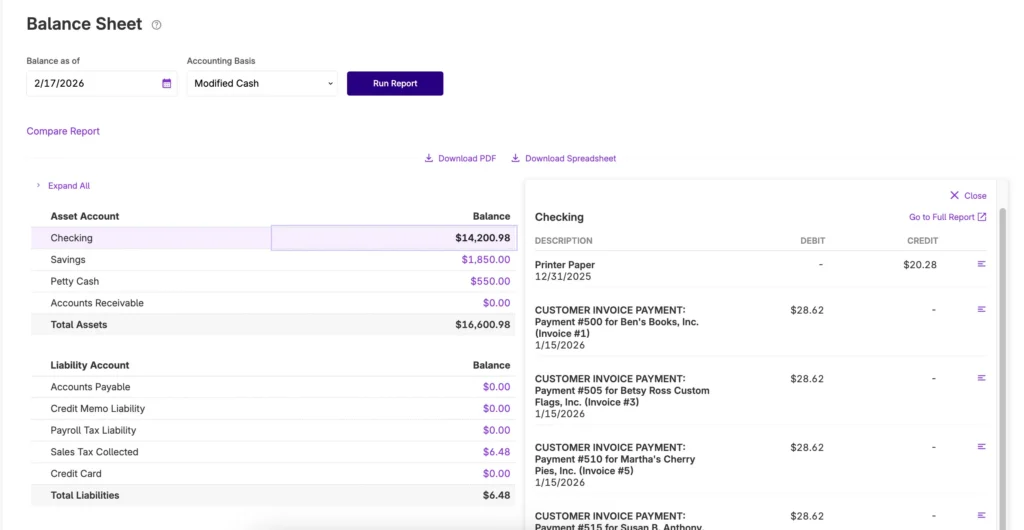
2. A panel on will display on the right side of the entry with the details of each transaction that makes up the total balance.
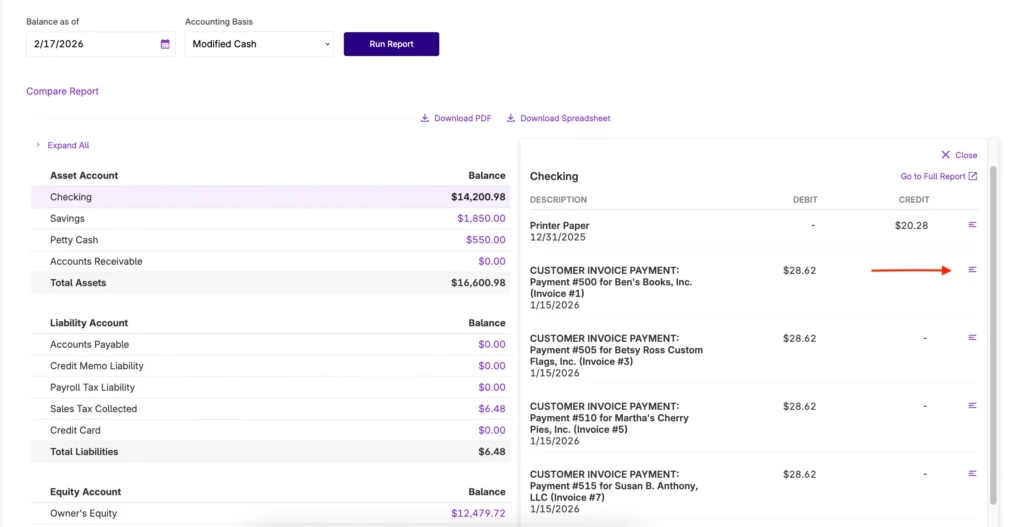
3. Click the horizontal three lines on the right panel of the drill-down report to view the journal entry.
4. Click “Go to Full Report” to go to the General Ledger report with the same filters.
How to Compare Periods on the Balance Sheet Report
- Click the “Compare Report” link at the top left of the report to view comparison data on the Balance Sheet Report.
- Enter the “Compare To” by selecting the from the previous period, the previous year, or a custom date range.
- Enter Comparison Start Date and Comparison End Date.
- The balances displayed when comparing data will be net balances (net change) for the date ranges selected.
Your feedback will not receive a reply. If you have a specific issue, please reach out to our support team here.